Monthly Archives: May 2011

Top 10 Policy-Based Management Policies from MSSQLTIPS.com

Whenever I give a presentation about Policy-Based Management I always mention that www.mssqltips.com has a great library of policies to import. To this point I never provided a top ten list of recommended policies.  In no particular order are ten policies I highly recommend.

Shameless Plug: I need your vote for the Member Summit

I just got back from SQLRally and I would love to speak at the 2011 SQL Server PASS Member Summit (the greatest conference in the world for SQL Server Professionals) and I need your help. This year they are including your session preferences in the session selection process. If you are a fan or enjoyed my presentations at a user group, SQL Saturday or SQL Rally  please vote for my session “Evaluate a Daily Checklist against 100+ instances of SQL Server while you get a cup of coffee” (login required):

http://www.sqlpass.org/summit/2011/Speakers/SessionPreferencing.aspx?spid=104

Thanks in advance for your support! Voting closes on Friday, May 20th. Even if you’re not interested in my session help the committee select other speakers by marking their sessions as preferred.

Speaking at SQLRally today!

A few months ago I blogged that you don’t have to be an expert to speak. This fact is very true as I am speaking at #SQLRally  today about “Evaluating a daily checklist against 100+ instances of SQL Server while you get a cup of coffee.” Two years ago I would have never imagined that it would be possible for me to share my knowledge at SQLPASS events.

NOTE: If you are attending my session and have a camera please take photos and share them with me. I forgot my camera in Wheeling, West Virginia.

If you are at SQLRally or not at SQLRally you can access my slide deck here.  You can also find my references here. If you have any questions feel free to contact me.

Passed my #SQLUniversity PowerShell Midterm!

I am always up for learning something new so I jumped in on the free PowerShell training at SQL University. I saw that Aaron Nelson gave me the tools to loop through a Central Management Server and I was inspired. My main motivation came from learning that Policy-Based Management isn’t the ideal solution for evaluating a daily checklist. I started to notice that the time needed to evaluate full backups started to grow as more databases were added to the farm.
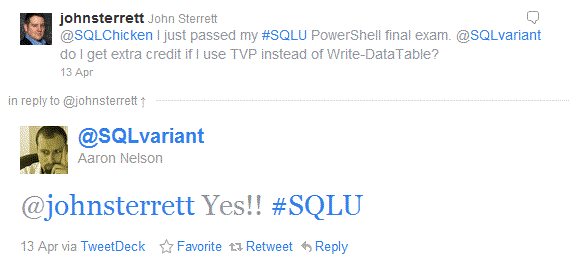
I passed the #SQLU exam and got extra credit!

With the following framework you can automate the process of collecting data from the system tables and DMV’s. In this example we are going to focus on automating the process of collecting failed full backups within the last 24 hours.

NOTE: Remember, you could apply this framework to automate the process of collecting any data from the system tables or DMV’s.

Below is the framework steps: (Steps 1 – 3 are need only for the first implementation)

  1. Configure your Central Management Server (We will assume you have this completed)
  2. Configure your server to run PowerShell with SQL. (Go to PowerShell week at SQLUniversity for the guide)
  3. Get and import the out-DataTable PowerShell function
  4. Create and save T-SQL query you want to run against your SQL farm.
  5. Create table to store results
  6. Create table type required with Table Value Parameters
  7. Create stored procedure to insert DataTable
  8. Automate with SQL Agent Job

PowerShell – Find failed backups in the last 24 hours.

In general the following block of PowerShell will allow you to collect results for any query executed against your SQL Farm with the Central Management Server. With that said, there are a few lines that will need to explain so it can be modified for the code to work in your shop.

  1. On line #1, the CMS for this example is PBMDEMO. You will need to switch this to your CMS server.
  2. On line #4, the T-SQL file is named “Missing Backups.sql” and its located at C:\Demos\CMS_PBM\Scripts\T-SQL. You will need to change this to T-SQL file you want to execute against your SQL farm.
  3. On line #7, the server name and database will need to be changed to your daily checklist repository. In this example I use PBMDEMO and PolicyManagement.
  4. On line #10, the stored procedure name will need to be the name for your stored procedure to input your collected date using Table Value Parameters.
  5. On line #17, The table type will need to match your table type used to strongly type the table parameter in your stored procedure (more on this below)

We will save the PowerShell script as FailedBackups.ps1 in the C:\demos\CMS_PBM\Scripts\PowerShell folder so the SQL Agent job will just load this file when we automate the data collection solution.


foreach ($RegisteredSQLs in dir -recurse SQLSERVER:\SQLRegistration\'Central Management Server Group'\PBMDEMO\ | where {$_.Mode -ne "d"} )
{

$dt = Invoke-sqlcmd -ServerInstance "$($RegisteredSQLs.ServerName)" -Database "tempdb" -InputFile "C:\Demos\CMS_PBM\Scripts\T-SQL\Missing backups.sql" | out-DataTable
$dt
# Write data table to database using TVP
$conn = new-Object System.Data.SqlClient.SqlConnection("Server=PBMDEMO;DataBase=PolicyManagement;Integrated Security=SSPI")
$conn.Open() | out-null
"Connected"
$cmd = new-Object System.Data.SqlClient.SqlCommand("dbo.usp_InsertFailedBackups", $conn)
$cmd.CommandType = [System.Data.CommandType]'StoredProcedure'
#SQLParameter
$spParam = new-Object System.Data.SqlClient.SqlParameter
$spParam.ParameterName = "@TVP"
$spParam.Value = $dt
$spParam.SqlDbType = "Structured" #SqlDbType.Structured
$spParam.TypeName = "FailedBackups"

$cmd.Parameters.Add($spParam) | out-Null
$cmd.ExecuteNonQuery() | out-Null
$conn.Close() | out-Null
}

T-SQL Query to find failed backups. You will need to save it as “Missing Backup.sql” and place it in the C:\Demos\CMS_PBM\Scripts\T-SQL folder or modify the second line of code in the PowerShell example above to have the correct name and path.

BEGIN

DECLARE @BackupDB TABLE (database_name varchar(255), last_db_backup_date datetime, database_id integer)
INSERT INTO @BackupDB (database_name, last_db_backup_date, database_id)
SELECT
msdb.dbo.backupset.database_name,
MAX(msdb.dbo.backupset.backup_finish_date) AS last_db_backup_date,
DB_ID(database_name)
FROM   msdb.dbo.backupmediafamily
INNER JOIN msdb.dbo.backupset ON msdb.dbo.backupmediafamily.media_set_id = msdb.dbo.backupset.media_set_id
WHERE  msdb.dbo.backupset.type = 'D'
GROUP BY
msdb.dbo.backupset.database_name
ORDER BY
msdb.dbo.backupset.database_name

SELECT SERVERPROPERTY('ServerName') AS ServerName, name AS DatabaseName, last_db_backup_date
FROM master.dbo.sysdatabases  d LEFT JOIN @BackupDB b ON (DB_ID(d.name) = b.database_id)
WHERE (last_db_backup_date < DATEADD(hh, -24, getdate())
OR b.last_db_backup_date IS NULL)
AND dbid > 4
END

Create Table

The following table will be used to save the results for running the above t-sql query against the SQL Server farm.

CREATE TABLE [dbo].[FailedBackups](
[ServerName] [varchar](250) NULL,
[DatabaseName] [varchar](max) NULL,
[DateCaptured] [datetime] NULL,
[last_db_backup_date] [datetime] NULL
) ON [PRIMARY]

GO

Create Table Type

The table type is used as a requirement of using Table Value Parameters. This allows the stored procedure to know what table you are trying to pass to the stored procedure. The last five columns are required by the out-DataTable powershell function.

CREATE TYPE [dbo].[FailedBackups] AS TABLE(
[ServerName] [varchar](250) NOT NULL,
[DatabaseName] [varchar](max) NOT NULL,
[last_db_backup_date] [datetime] NULL,
[RowError] [varchar](1000) NULL,
[RowState] [varchar](1000) NULL,
[Table] [varchar](1000) NULL,
[ItemArray] [varchar](1000) NULL,
[HasErrors] [varchar](1000) NULL
)
GO

Create Insert Stored Procedure

The following stored procedure leverages Table Value Parameters to input a DataTable and do a insert select statement to populate the table.

CREATE PROCEDURE [dbo].[usp_InsertFailedBackups] @TVP FailedBackups readonly
AS
BEGIN

INSERT INTO dbo.FailedBackups (ServerName,DatabaseName, DateCaptured, last_db_backup_date)
SELECT  ServerName,
DatabaseName,
GETDATE(),
last_db_backup_date
FROM    @TVP
END

Automate Data Collection with SQL Agent and PowerShell

If you have used the Central Management Server you will notice quickly that you cannot schedule a query to run agains your farm. An easy work around is to use PowerShell to run your t-sql via a SQL Agent Job. Below is an simple scripted example that does that.

USE [msdb]
GO

/****** Object:  Job [Daily Checklist - Failed Backups]    Script Date: 05/11/2011 23:43:52 ******/
BEGIN TRANSACTION
DECLARE @ReturnCode INT
SELECT @ReturnCode = 0
/****** Object:  JobCategory [[Uncategorized (Local)]]]    Script Date: 05/11/2011 23:43:52 ******/
IF NOT EXISTS (SELECT name FROM msdb.dbo.syscategories WHERE name=N'[Uncategorized (Local)]' AND category_class=1)
BEGIN
EXEC @ReturnCode = msdb.dbo.sp_add_category @class=N'JOB', @type=N'LOCAL', @name=N'[Uncategorized (Local)]'
IF (@@ERROR <> 0 OR @ReturnCode <> 0) GOTO QuitWithRollback

END

DECLARE @jobId BINARY(16)
EXEC @ReturnCode =  msdb.dbo.sp_add_job @job_name=N'Daily Checklist - Failed Backups',
@enabled=1,
@notify_level_eventlog=0,
@notify_level_email=0,
@notify_level_netsend=0,
@notify_level_page=0,
@delete_level=0,
@description=N'No description available.',
@category_name=N'[Uncategorized (Local)]',
@owner_login_name=N'sa', @job_id = @jobId OUTPUT
IF (@@ERROR <> 0 OR @ReturnCode <> 0) GOTO QuitWithRollback
/****** Object:  Step [PowerShell - Find Failed Backups]    Script Date: 05/11/2011 23:43:53 ******/
EXEC @ReturnCode = msdb.dbo.sp_add_jobstep @job_id=@jobId, @step_name=N'PowerShell - Find Failed Backups',
@step_id=1,
@cmdexec_success_code=0,
@on_success_action=1,
@on_success_step_id=0,
@on_fail_action=2,
@on_fail_step_id=0,
@retry_attempts=0,
@retry_interval=0,
@os_run_priority=0, @subsystem=N'PowerShell',
@command=N'. C:\Demos\CMS_PBM\Scripts\PowerShell\out-DataTable.ps1
. C:\Demos\CMS_PBM\Scripts\PowerShell\FailedBackups.ps1',
@database_name=N'master',
@flags=0
IF (@@ERROR <> 0 OR @ReturnCode <> 0) GOTO QuitWithRollback
EXEC @ReturnCode = msdb.dbo.sp_update_job @job_id = @jobId, @start_step_id = 1
IF (@@ERROR <> 0 OR @ReturnCode <> 0) GOTO QuitWithRollback
EXEC @ReturnCode = msdb.dbo.sp_add_jobserver @job_id = @jobId, @server_name = N'(local)'
IF (@@ERROR <> 0 OR @ReturnCode <> 0) GOTO QuitWithRollback
COMMIT TRANSACTION
GOTO EndSave
QuitWithRollback:
IF (@@TRANCOUNT > 0) ROLLBACK TRANSACTION
EndSave:

GO

Intro to Central Management Server

Do you have a DBA team that consists of more than one dba? Do you have a windows authenticated account that has access to all the SQL Server instances in your farm? If so, you might really want to consider leveraging the Central Management Server (CMS) to do your heavy lifting.

Today, we will cover creating your first Central Management Server. Come back later in the week to see a great example to automate the process of verifying full daily backups.

image

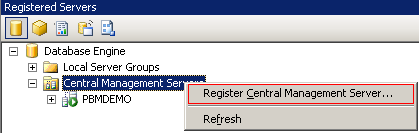
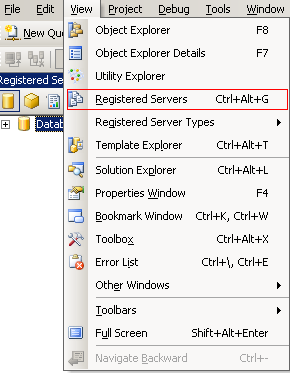
 Step 1: You might not be able to registered serves or see Central Management Servers in SQL Server Management Studio. To view them click on view in the menu bar and click on Registered Servers.

image

 Step 2: Now that you can see Central Management Server folder right click on it and click on Register Central Management Server. This will allow you to designate a server as your Central Management Server.

image

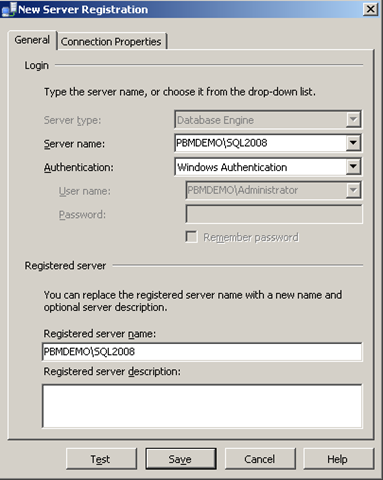
 Step 3: Register your new CMS. In this example I am going to use PBMDEMO\SQL2008 as my Central Management Studio. Once you enter the name test the connection and then save your settings.

image

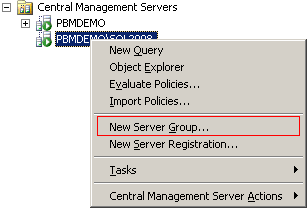
Step 4: Now that the PBMDEMO\SQL2008 Central Management Server is configured lets add a group to hold development and production instances. This is done by right clicking on the instance (PBMDEMO\SQL2008) and clicking on New Server Group.

image

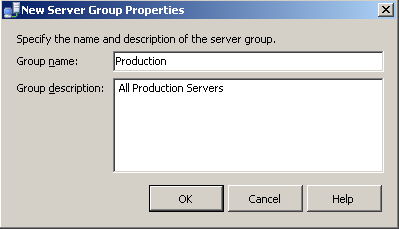
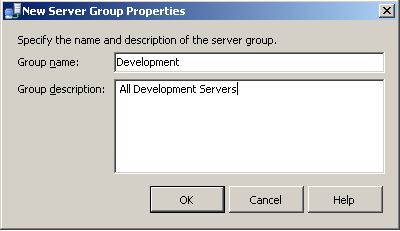
Step 5: Configure a folder for your production servers. We will use Production as the group name. This will be shown as a folder in the screen shot below.

image

Step 6: Configure a folder group for your development servers. In this case we will add our SQL Express edition as a development server.

image

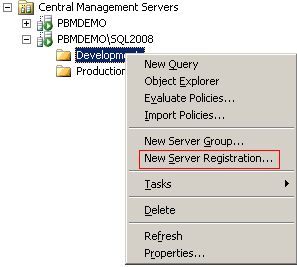
Step 7: Lets add our Express edition server to the development group. Right click on Development folder and select New Server Registration.

image

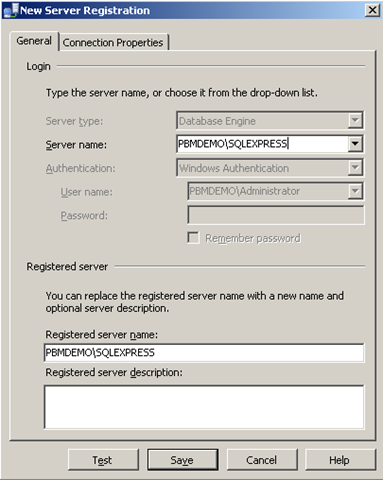
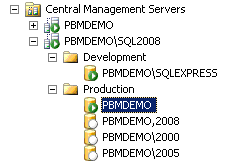
Step 8: Add PBMDEMO\SQLEXPRESS as the server name and test the connection. Once its successful save the connection. Lets now repeat steps 7 and 8 to add four instances of SQL Server to the production group (PBMDEMO, PBMDEMO,2008 and PBMDEMO\2005, PBMDEMO\2000)

image 

The screen shot above should be the final result for adding five production instances and one development instance. Come back later in the week as we show you how to leverage the CMS server to run and automate the execution of multi-server queries.

Get your learn on… May 2011

May is a great month for DBA’s and developers in Pittsburgh, PA and Wheeling, WV. Here are some great events you should attend this month.

Pittsburgh, PA and Wheeling, WV

Update 5/10/2011: Included SharePoint meeting as recommended by John Scott.

Date Host Meeting
May 11th Greater Wheeling Chapter of AITP Blogging – what is it and why should I?
May 11th Pittsburgh SharePoint User Group Upgrading to SharePoint 2010: A Panel Discussion
May 16th Pittsburgh .NET User Group Visual Studio Product Tour
May 24th Pittsburgh SQL Server User Group Virtualization and SAN Basics for DBAs
May 26th WVPASS –Wheeling SQL UG Database Mirroring: The Bear Necessities

SQL Rally!

This week I will be getting my connect, share and learn on in Orlando, Florida at SQL Rally(yes, you can still sign up!). I cannot wait to connect with my friends in the SQL Server community.  I also look forward to making some new ones. I will be sharing my knowledge on “Evaluating your Daily Checklist against 100+ instances of SQL Server while you get a cup of coffee.” I will also be participating in the Mock Interview Overdrive session hosted by Kevin Kline.  I also look forward to learning from the vendors and some of the best presenters in the SQL Server community.

Speaking of vendors, I look forward to catching up with Confio, Idera, SQLSentry (bonus points for being a WVPASS sponsor), Quest, RedGate and DELL.  I also look forward to meeting new vendors like entrinsik, Enterprise Software Solutions, Melissa DATA.

I am sure I will have some ad-hoc changes but I still want to share my schedule for next week.

Day Event Description
Wednesday Free Day! There are some really good pre-con sessions. I might jump in one of these sessions or see the sites of Orlando.
  After-Hours Activities Beer, Wings and SQL Networking  at Buffalo Wild Wings
  After-Hours Activities Pirate’s Cove for miniature golf.
Thursday Morning Session I The Dirty Dozen: PowerShell Scripts for the Busy DBA – Aaron Nelson
  Morning Session II Visit the SQL Rally vendors!
  Morning Session III Understanding Storage Systems and SQL Server – Wes Brown
  Lunch! WIT Luncheon and Panel Discussion
  Afternoon Session I T-SQL Code Sins: The Worst Things We Do to Code, and WhyJennifer McCown
  Afternoon Session II Writing faster queries – Tim Chatman
  Afternoon Session III SQL University: Lightning TalksJorge Segarra
  SQLRally OverDrive
Conducting an Interview – Participating
  After-Hours Activities meet up at nearby Old Town
Friday Morning Session I Big and Tall: When to Partition – Kendra Little
  Morning Session II Prepare for my presentation and visit vendors!
  Morning Session III Evaluate your daily checklist against 100+ instances of SQL Server while you get a cup of coffee – ME!
  LUNCH!!  
  Afternoon Session I Deadlocking for Mere MortalsJonathan Kehayias
  Afternoon Session II Windows PowerShell Best Practices for SQL DBA’s – Ed Wilson
  Afternoon Session III Fundamentals of SQL Server InternalsJeremiah Peschka
  Vendor Raffle  

Meme Monday: I Got 9 SQL Backup Problems but a Disk Ain’t One…

First of all I had no idea Hugo did a version of “99 Problems.” I may be biased because I have two turntables and a microphone (If you volunteer to help or speak at  SQLSaturday #80 I can give you a demo) but its true Jay-Z’s version is much better than Hugo’s version.

I got two turntables and a microphone

I got two turntables and a microphone

Now that we have who’s version of “99 Problems…” is better resolved lets dive into this months Meme Monday. If you are not familiar with Meme Monday check out Tom LaRock’s (blog @SQLRockStar) blog post for more details.

Here are nine problems directly related to backups and monitoring backups that I have seen in my IT career that spans an ISV shop, consulting and the corporate world. I hope you don’t find these in your shop. Here they are in no particular order.

  1. No Automated process to backup your databases
  2. No retention policy or standards
  3. No Automated process to verify that backups succeeded
  4. Database Mail is not enabled (You cannot get any job failure emails with out DB mail)
  5. Notification for backup jobs don’t include an operator to alert SQL team on failure
  6. DBA doesn’t practice recovering databases from backups
  7. No automated  jobs to do transactional log backups on databases in “Full”  or “Bulk-Logged” Recovery mode
  8. Backups do not exist outside the production server
  9. Backup drive ran out of space (Oh snap, I broke rule #1 I cannot talk about disks)