Category Archives: SQLServerPedia Syndication

This category is for SQLServerPedia Syndication

I am a Microsoft Data Platform MVP

My First Microsoft SQL Server MVP Award

My First Microsoft SQL Server MVP Award

Today, I have achieved an SQL Someday moment.  I am excited to share some exciting news. Microsoft has chosen me to receive the Microsoft “MVP” award. I am completely shocked as this is my first time obtaining this award.

It is a tremendous honor to be given this award. Words cannot describe how humbling it is just to be nominated for this award by peers within the Data Platform community. I am blessed to be part of the community.  I am thankful to work in a career that supports the ability for everyone to connect, share and learn. I look forward to doing the same as a new member of the MVP community.

Who Are Microsoft MVP’s?

The following excerpt comes directly from the Microsoft MVP website.

“Microsoft Most Valuable Professionals, or MVPs, are community leaders who’ve demonstrated an exemplary commitment to helping others get the most out of their experience with Microsoft technologies. They share their exceptional passion, real-world knowledge, and technical expertise with the community and with Microsoft.”

How My Journey Started

I would never forget and always be thankful to Adolph Santorine my boss at the time who told me, “John, I think you should get involved in our local Association for Informational Technology Professionals (AITP) chapter.” He shared how it help him personally and how he thought it could be beneficial for my career.   Adolph was right. I learned so much from some well experienced IT leaders. The Greater Wheeling Chapter of AITP is where my community involvement started, and I was lucky to start with a community who has been connecting, sharing and learning since 1960’s.  When I decided to get my local community involved in the SQL Server community my fellow AITP members had my back and helped make our event a success. From this moment, I was introduced into PASS and the SQL Server Community.  I have been connecting, sharing and learning ever since. 

How Will Things Change?

They will not change, and to me, that is the greatest part of this award. I still plan to connect, share and learn with as many people as possible. The data platform is evolving.  I plan on being involved in the community and building relationships with individuals who are interested in seeing the Microsoft Data Platform grow and succeed.

Special Thanks

I would like to thank my family, friends, and mentors.  Without their help and support, I would never be the person who I am today or tomorrow.

I would also like to thank everyone I have worked with in my career.  Thank you to everyone at Deloitte, Schedule Star, Orrick Herrington & Sutcliffe, RDX, Dell and Linchpin People. I am truly blessed to have a lot of great mentors and friends.   Thank you for giving me the opportunity to learn, grow, and have a career doing what I love to do.

DONT FORGET TO NOMINATE

Finally, you might not know this, but anyone can nominate someone for a Microsoft MVP Award. You don’t have to be an MVP or a Microsoft employee. I have personally been nominating people for years and will continue to do so as an MVP. If you know of anyone who you think is deserving of the Microsoft MVP Award nominate them.

Automatic Seeding Very Large Databases in SQL Server 2016

There are a lot of new features in SQL Server 2016. Availability Groups by itself got a lot of new features.  Being that I am the founder of the High Availability and Disaster Recovery Virtual Chapter, I plan on blogging about the new availability group features.

Today, I wanted to write about Automatic Seeding.  Microsoft did an excellent job of explaining how to enable and monitor automatic seeding.  I wanted to focus this post on my experience utilizing automatic seeding to seed an existing 600gb database in a test environment to test my endpoint network throughput.

The initial data synchronization easy button.

When you add a database to an availability group, the replicas must synchronize the data between the availability groups to join the database on the replicas.  In the past, data initialization has been done with mirroring, log shipping, backup, and restores.  Personally, I have been a big fan of log shipping for the initial data synchronization of VLDB’s especially when you need more than two replicas. Here is how I added a 60TB (Yes, TB not GB) database to an availability group that utilized multiple data centers.

Automatic seeding is a feature that has been in Azure SQL Databases for a while. It’s how the initial data synchronization occurs for Geo-Replication of Azure SQL Databases.  Automatic seeding utilizes a VDI Backup to take a copy only backup and send it over the endpoint network to seed the replicas and then join the databases with the replicas. This eliminates the need to manually take full and log backups from the primary replica to all the secondary replicas. It will also join the database on the replicas for you.

Bonus Feature of Automatic Seeding

There is also a bonus feature of automatic seeding for DBA’s and Information Technology professionals.  Even if you decide to not use automatic seeding I recommend testing this feature as automatic seeding can be a great way to stress your endpoint network to validate its throughput.

Background Information

This availability group has been configured with a separate 10Gbps network dedicated to endpoint traffic. Nothing else is active on the network or the replicas during the time of testing.

Setup

I configured the following performance monitor counters.

  • Bytes Received/sec on Secondary replicas
  • Bytes Sent/sec on Primary replica.

I also configured the following extended event session to monitor seeding activity on the primary and secondary replicas. We will focus on the “hadr_physical_seeding_progress” event today. We will talk about others in a future blog post.

CREATE EVENT SESSION [AlwaysOn_autoseed] ON SERVER 
ADD EVENT sqlserver.hadr_automatic_seeding_state_transition,
ADD EVENT sqlserver.hadr_automatic_seeding_timeout,
ADD EVENT sqlserver.hadr_db_manager_seeding_request_msg,
ADD EVENT sqlserver.hadr_physical_seeding_backup_state_change,
ADD EVENT sqlserver.hadr_physical_seeding_failure,
ADD EVENT sqlserver.hadr_physical_seeding_forwarder_state_change,
ADD EVENT sqlserver.hadr_physical_seeding_forwarder_target_state_change,
ADD EVENT sqlserver.hadr_physical_seeding_progress,
ADD EVENT sqlserver.hadr_physical_seeding_restore_state_change,
ADD EVENT sqlserver.hadr_physical_seeding_submit_callback
ADD TARGET package0.event_file(SET filename=N'autoseed.xel',max_file_size=(20),max_rollover_files=(4))
WITH (MAX_MEMORY=4096 KB,EVENT_RETENTION_MODE=ALLOW_SINGLE_EVENT_LOSS,
MAX_DISPATCH_LATENCY=30 SECONDS,MAX_EVENT_SIZE=0 KB,
MEMORY_PARTITION_MODE=NONE,TRACK_CAUSALITY=OFF,STARTUP_STATE=ON)
GO

The following T-SQL script is then used to read the results once your seeding process has completed. We will talk about the results in the results section below.

DECLARE @XFiles VARCHAR(300) = 'S:\MSSQL13.MSSQLSERVER\MSSQL\Log\autoseed*'

;WITH cXEvent
AS (
     SELECT    object_name AS event
              ,CONVERT(XML,event_data) AS  EventXml
     FROM      sys.fn_xe_file_target_read_file(@XFiles, NULL,NULL,NULL)
     where object_name like 'hadr_physical_seeding_progress')

 SELECT 
c1.value('(/event/@timestamp)[1]','datetime') AS time
,c1.value('(/event/@name)[1]','varchar(200)') AS XEventType
,c1.value('(/event/data[@name="database_id"]/value)[1]','int') AS database_id
,c1.value('(/event/data[@name="database_name"]/value)[1]','sysname') AS [database_name]
,c1.value('(/event/data[@name="transfer_rate_bytes_per_second"]/value)[1]','float') AS [transfer_rate_bytes_per_second]
,(c1.value('(/event/data[@name="transfer_rate_bytes_per_second"]/value)[1]','float')*8)/1000000.00 AS [transfer_Mbps]
,c1.value('(/event/data[@name="transferred_size_bytes"]/value)[1]','float') AS [transferred_size_bytes]
,c1.value('(/event/data[@name="database_size_bytes"]/value)[1]','float') AS [database_size_bytes]
,(c1.value('(/event/data[@name="transferred_size_bytes"]/value)[1]','float') / c1.value('(/event/data[@name="database_size_bytes"]/value)[1]','float'))*100.00 AS [PctCompleted]
,c1.value('(/event/data[@name="is_compression_enabled"]/value)[1]','varchar(200)') AS [is_compression_enabled]
,c1.value('(/event/data[@name="total_disk_io_wait_time_ms"]/value)[1]','bigint') AS [total_disk_io_wait_time_ms]
,c1.value('(/event/data[@name="total_network_wait_time_ms"]/value)[1]','int') AS [total_network_wait_time_ms]
,c1.value('(/event/data[@name="role_desc"]/value)[1]','varchar(300)') AS [role_desc]
,c1.value('(/event/data[@name="remote_machine_name"]/value)[1]','varchar(300)') AS [remote_machine_name]
,c1.value('(/event/data[@name="internal_state_desc"]/value)[1]','varchar(300)') AS [internal_state_desc]
,c1.value('(/event/data[@name="failure_code"]/value)[1]','int') AS [failure_code]
,c1.value('(/event/data[@name="failure_message"]/value)[1]','varchar(max)') AS [failure_message]

FROM cXEvent
    CROSS APPLY EventXml.nodes('//event') as t1(c1)

Results

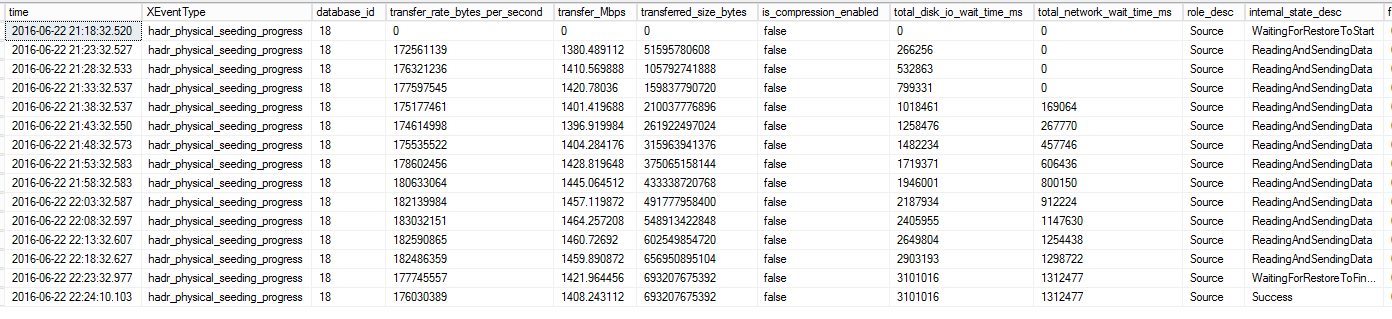
The 600 GB databases took about 66 minutes to seed across the network from a primary replica to the secondary replica.  I noticed 1.4 Gbps of consistent throughput during the seeding process. This makes a lot of sense as it caps out around what the storage system can deliver in this environment.

The first thing I would look at for benchmarking throughput for network activity would be the bytes sent per second from the primary replica and bytes received per second on the secondary replicas.
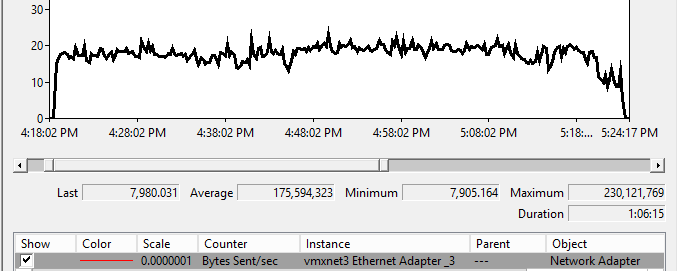
AG Seeding Primary Replica's Bytes Sent per Second

AG Seeding VLDB Primary Replica – Bytes Sent per Second
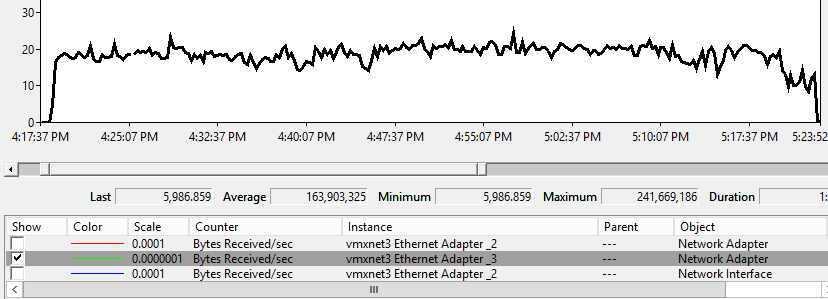
AG Seed VLDB Secondary Perfmon

AG Seed VLDB Secondary Replica – Bytes Received per Second

I am seeing average around 1.4 Gbps.  Normally, just looking at bytes sent and bytes received will be good enough for you to measure your throughput.  Especially, when nothing else is utilizing the dedicated endpoint network. In the field, I usually do not see dedicated networks for endpoint traffic so I wanted to take this a step further and monitor with some of the new extended event events for automatic seeding.

Here is a look at the raw data from the extended event capture showing the progress and throughput of the seeding.
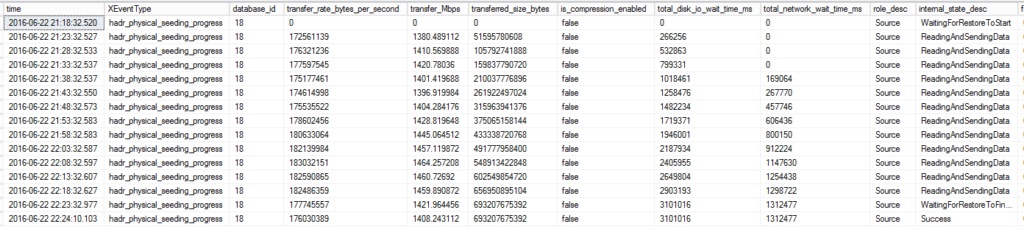
AG Seed Xevent Transfer

The following is a nice excel graph showing the throughput in Mbps. I added an extra row with zero for throughput just to show the rise and fall of network usages as seeding starts and completes.
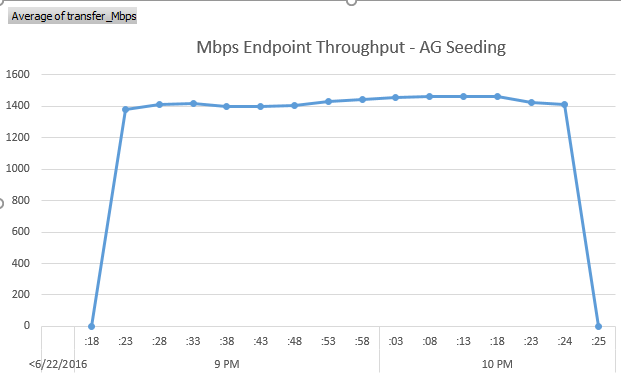
AG Seeding Excel Graph

My Thoughts

Initial data synchronization process just got a lot easier.  I will use this for sure for adding new databases to availability groups.  If you can live with your transactional log not being truncated during the seeding process I strongly encourage you to use automatic seeding.

I also did not use trace flag 9567  to enable compression during this test. It is why you saw compression not being enabled.  If you have the CPU resources I recommend you test this as well.

Reference Links

For more great information on SQL Server subscribe to my blog and follow me on twitter.

Photo Credit: Mike Mozart (Creative Commons)

3 Reasons to Attend SQL Saturday Austin on Jan 30th

The Austin SQL Server User Group will host its third SQL Saturday on Saturday,

SQL Saturday Austin on January 30th, 2016

SQL Saturday Austin on January 30th, 2016

January 30th. SQLSaturday is a training event for SQL Server professionals and those wanting to learn about SQL Server. Admittance to this event is free ($15 for lunch), all costs are covered by donations and sponsorships. This all-day training event includes multiple tracks of SQL Server training from professional trainers, consultants, MCM’s, Microsoft Employees and MVPs.

Here are three reasons why I am excited to attend the SQL Saturday in Austin.

PreCons

While the SQL Saturday is free, there is also two separate all-day classes on Friday, January 29th that are dirt cheap compared to the cost of attending these classes at your local training center.

Have you ever wanted to learn how to make SQL Server go faster?  In a single day, Robert Davis will show you Performance Tuning like a Boss.

Have you wondered how you can keep your data highly available when your servers go bump in the night?  Ryan Adams will be teaching a class on Creating a High Availability and Disaster Recovery Plan.  Having a solid recovery plan can make you a Rockstar DBA and also help keep your company in business.

Sessions

In Austin we are blessed to have some of the best teachers come to town to share their knowledge.  We will have Connor Cunningham from the SQL Server Product team talk about the new features coming in SQL Server 2016.  We will have several MVP’s and MCMs sharing their knowledge.  If you want to learn about SQL Server there is not a better venue to do so than a local SQL Saturday.

Networking

Are you the only DBA or data professional working at your company?  If not, are you interested in meeting people who are as passionate as you are about data? If so, SQL Saturday is a great place to meet and network with some of the best data professionals.  I will never forget my first SQL Saturday. I found some vendors that had tools that made my job easier.  I also built some friendships that have helped me thought out my career.

Adding a VLDB database to an SQL Server Availability Group

Recently, I was tasked with making an 60TB database highly available by adding it to an availability group. The following, is how I successfully completed adding the very large database (VLDB) to an Availability Group that had two replicas in the primary data center and a third replica in another data center with no downtime. We wanted to utilize the least amount of time during the initial synchronization process so we leverage log shipping to prepare the database on each replica.

We will call the three servers DC1Server1, DC1Server2, and DC2Server3.  We will have a pre-created AG called SQL2014AG1. We will say that the 60TB database is named VLDB.

Previously we did a side by side upgrade to upgrade VLDB from running on SQL Server 2012 to SQL Server 2014 on new hardware.  Previously, we also leveraged the new hardware to upgrade a subset of the data and build out the Availability Group for testing and training purposes.

  1. Create Availability Group. This was created in advance to deliver a proof of concept and to provide training for understanding how to use and manage an Availability Group. Therefore, there was no reason to break this and recreate it. If needed, you could obviously create the AG as part of this deployment where we just Add the VLDB into the AG.  Creating an Availability Group will not be covered here.
  2. Configure Log Shipping. The primary database in log shipping should be on the instance that is also the read/write replica for the availability group. In this case, VLDB already exists and is configured as primary on DC1Server1. This is also the primary replica for the SQL2014AG1 availability group. If you need examples on how to configure log shipping checkout my article on MSSQLTips.com.
  3. Identify the Log Shipping backup Job. This job usually starts with LSBackup_ for your database. This will be on DC1Server1.
    1. Execute the SQL Agent Job to take a log transactional log backup
    2. Disable the SQL Agent Job when the backup completes.
  4. On the secondary servers (DC1Server2 and DC2Server3) identify the LSCopy_ job for your database named VLDB.
    1. Execute the SQL Agent Job to copy the last log backup that you just created in step three.
    2. Disable the SQL Agent Job when copy backup job completes.
  5. On the secondary servers (DC1Server2 and DC2Server3) identify the LSRestore_ job for your database named VLDB.
    1. Execute the SQL Agent Job to restore the backups pending to be restored. This should include your backup taken in Step four.
    2. Disable the SQL Agent Job when the restore completes.
  6. Validate that the last log backups were copied and restored. This can be done using sp_help_log_shipping_monitor stored procedure on each instance. We would do this on DC1Server1 to validate the last log backup that was completed. On DC1Server2 and DC2Server3 we can validate that the backup was copied and also restored.
  7. On the primary server DC1Server1 add the VLDB to the existing availability group named SQL2014AG1. You can do this via the GUI.
    1. In SSMS under Availability Groups expand “SQL2014AG1” Availability Group and right click on Availability Databases and select “Add Database” to add VLDB.
    2. Select the “VLDB” database in the checkbox
    3. Select Join Only to start data synchronization as we used Log shipping to keep the VLDB in sync across all servers.
    4. Connect to all existing secondary servers (DC1Server2, and DC2Server3)
    5. Validate adding the Database to the Availability Group
    6. Add the Availability Group to your Availability Group named SQL2014AG1
  8.  Validate that Adding VLDB was successful to SQL2014AG1
    1. Remove log shipping on DC1Server1 for the VLDB database.
    2. Enable your log backup process for all three servers. This would be used to replace log shipping for taking transactional log backups.


Converting identifiers into SQL Server table variables in Management Studio