Category Archives: SQL Server

All SQL Server posts that don’t fit in other categories

Rename Server Name for SQL Server Cluster

Recently I was given the task to rename the virtual name used by a SQL Server cluster.  To my surprise changing the virtual name is actually a easy task with SQL Server 2008 R2 on a Windows 2008 R2 Server.

Microsoft has a How to: Rename a SQL Server Failover Cluster Instance article that walks you though this topic.

Note:  This will not allow you to change an instance name so if you are not using a default instance name it will carry through.  For example if you use SQL2008 and connect using servername\SQL2008 you would connect using newservername\SQL2008.

The following steps will show you how I changed the virtual name from CLSTR02 to CLSTR01.  Being a good DBA I tested this out on a development cluster before I will attempt implementing this in production.  The following were my steps.

Step 0: Yes there really is a step zero.  In this step you need to verify with your network and server teams that the computer names for your nodes have permission to to made DNS changes.  If this is done you will not need anyone on standby as cluster manager will take care of changing DNS entries.

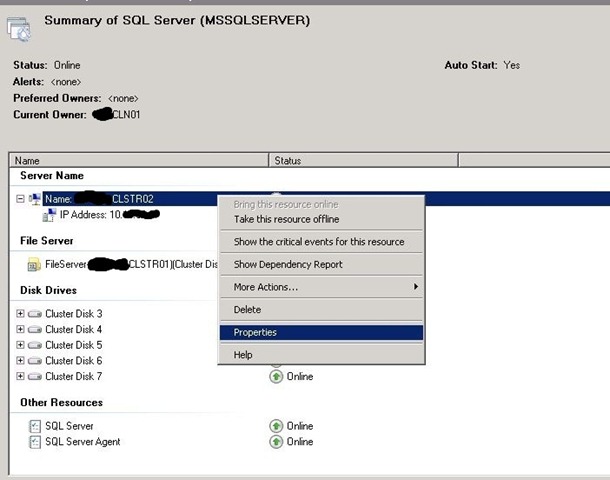
Step 1: Open up your Failover Cluster Manager and select SQL Server service.  Right click on the name and select properties.

SQLRenameCluster1

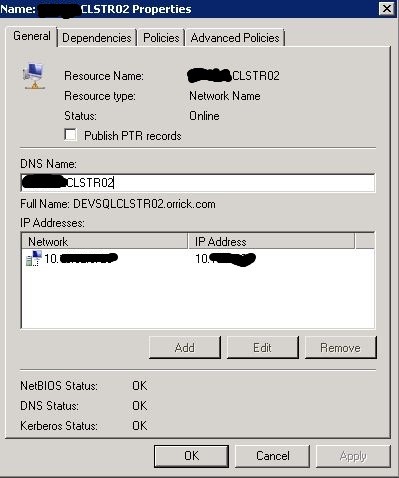
Step 2: Rename the virtual name specified in the DNS Name textbox.  In this case I will change the server name from CLSTR02 to CLSTR01.

SQLRenameCluster2

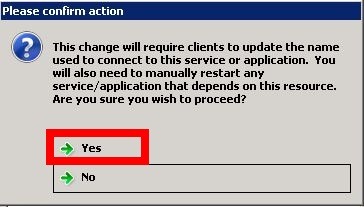
Step 3: Click yes on the confirm action popup screen shown below.  You will have to change all your applications to connect to the new name and restart any dependencies that fail to start. 

Note: I changed the name between CLSTR01 and CLSTR02 multiple times and only once SQL Server service didn’t come up online.  When this happened I just right clicked on the server and brought it online.
 SQLRenameCluster3

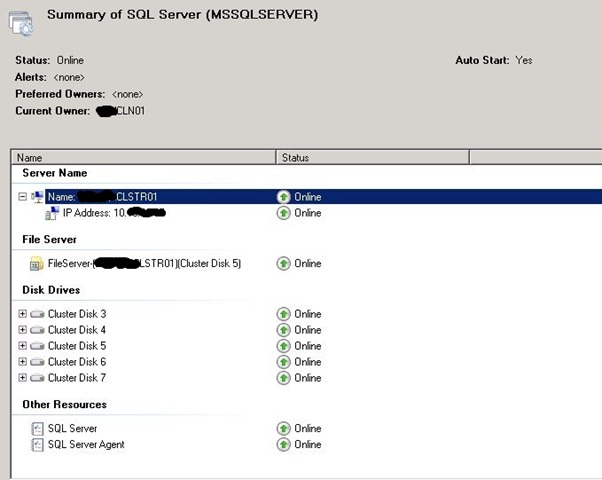
SQLRenameCluster4

Step 4: Change all your application that were connecting to CLSTR02 to CLST01.

Table Value Parameters with SQL Server and .NET

Have you ever wanted to send multiple insert statements using one round-trip to the database? This month I published a tip on mssqltips.com to do this implementing Table Value Parameters with .NET.  It will be the first of many tips and blog entries on SQL Server 2008 Development as I am schedule to present at a few events across the country.

For more on Table Value Parameters check out my links.

Recap: PGH.NET August 2010 Meeting

On August 10th 2010 I attended and presented at the PGH.NET User Group meeting named “5 Guys with Code.”  According to one of the PGH.NET leaders tweet it looks like the headcount was 60+

Twitter  David Hoerster @brittrking Awesome mtg la ..

The following are some thoughts and highlights from the presentations.

Presentations

  •  
    • John Sterrett (Blog | Twitter) – Table Value Parameters with SQL Server 2008 and Microsoft .NET  
  • I presented a feature that is included in SQL Server 2008 and underused by many developers.  This presentation shows developers how to pass a  DataTable, DataReaders and Lists to SQL Server database objects with only two extra lines of C# or VB.NET code. 

    As promised below are some reference links

  • David Hoerster (Blog | Twitter) – jQuery Code Snippets in Visual Studio 2010

Time is money and David’s fifteen minute tip might just save you a lot of time and money.    He covered several tools that will help you generate some awesome JavaScript. 

I  really liked the jsFiddle.NET tool.  It looks like a great tool to mockup some a user interface (more on user interfaces later).

  • Rich Dudley (Blog  | Twitter ) – A Quick Look at the New SQL CE Engine

Being addicted to databases I very happy to see that I wasn’t the only one presenting a topic based on databases.  Rich did a great job explaining what SQL CE can do and what it cannot do. 

Rich blogged about his experience (post includes photos, slides and more)

  • John Hidey (Blog | Twitter) – Layout Controls for XAML

I have to admit that XAML and I don’t get along well.  We had a fling a few years ago.  XAML cheated on me and I haven’t been the same since.

Ok seriously, I tried XAML a few times and found it very hard to understand.  John did a great job going over the common things that are hard to understand when you get started with XAML.   John started with some very basic controls and then built a final example that included all the basic controls.

At this summers PGH.NET Code Camp we had a speakers session where one of the presenters said, “Code is considered legacy code when TDD is not applied.”  Eric bowling for TDD example showed how anyone can start developing TDD.

Moving SharePoint to the data center

I cannot speak for the whole legal industry but where I work a lot of people love some SharePoint.  It’s like 50 Cent says, “We love SharePoint like a fat kid loves cake.”  And trust me we love some cake.  With this mad love of SharePoint comes great collaboration and with this great collaboration comes tons of binary files stored in a database.  What does this mean to the DBA? SharePoint now consists of VLDB’s

Hmm… How do we move the VLDB’s across the USA and keep them in sync?

With the built in features of Log Shipping, database Mirroring, Transactional Replication with SQL Server I knew it was possible to migrate the databases and keep them in-sync.   At the time I wasn’t exactly sure of the best way to do this so I used the bat phone.

While some people love SharePoint I love Twitter. Twitter allows me to communicate with several great DBA’s.  For example, I used #sqlhelp which is the equivalent of getting Batman on the bat phone.  This time it was Brent Ozar ( Twitter | Blog) who confirmed my gut feeling that Log Shipping was the way to go.

So…. How do you do it?

The complete process I used is documented at mssqltips #2073.  This tip walks you though the process of 22 steps to get the job done.  I hope this tip helps out other DBA’s that need to migrate VLDB’s from one location to another location without using third party tools.

If you have any comments or suggestions please forward them along.

Using Profiler to trace database calls from third-party applications

Today using profiler to trace database calls from third-party applications was published on www.mssqltips.com.  Hopefully, this tip will help some people understand why profiler is bacon.  In this example I trace two queries with Management Studio.  Speaking of Management Studio, have you ever wondered what queries are executed by your favorite features of Management Studio?  You can follow the steps in this tip to do that too.

This is my fist tip published at www.mssqltips.com.  I look forward to publishing tips on a monthly basis.

Cutover 30+ GB databases in 60 seconds with SQL Server 2005/2008

You kid brother just messed up a database migration.  You now have sixty seconds to migrate a 30 GB database or you kid brother is…

Okay I gave it a shot 🙂

If you are familiar with moving databases across servers most likely you are using one of the following methods.  Today I am going to write about what goes on during these methods with a focus on speed and provide another option that might work for you.

  • Detach/Attach
  • Copy Database Wizard
  • Backup/Restore
  • 3rd Party Tools

Detach/Attach

The detach/attach method allows you to detach and reattach databases. Therefore, in order to move a database from one server to another you have to detach the database, physically move the data and log files to the new server and then attach the database.  An unforeseen bottleneck with this strategy might be network latency. While this method is very straight forward and simple how long can the database be offline while you are moving the database files (mdf, ndf, ldf) during the detach/attach process?

Copy Database Wizard

The copy database wizard is a tool that leverages SQL Server Integration Services (SSIS) to copy a database from one server to another.  The account that the package uses at runtime has to have sysadmin role on both the source and destination instances.  You have two options during the copy process.  The first method is detach/attach see the paragraph above for feedback on using detach/attach.  The second method includes using SMO to script database objects.  This method keeps the source database online during the copy but is much slower than the detach/attach.  Therefore, I have no feedback on this method.  Have you used it? If so please add your comments.

Backup/Restore

Assuming you are using the Full recovery mode for your database the backup restore method for moving a database involves taking a full backup and a transactional log backup where you backup the tail of the log, and leave the database in restoring state.  This will take the source database offline keep the data in sync.  With restore time being a factor you could restore the full backup and do incremental transaction logs up to the point of cutting over assuming assuming no full backups occurred on your database while you started applying transactional backups.

And the winner is…

Drum roll please……..  And the winner is Database Mirroring in High Availability Mode as it can allow you to cutover failover to migrate huge databases in less than sixty seconds.  Okay I might be cheating, it will take much more than sixty seconds to configure. The important fact is that it will seam like it only took seconds to the end users. If your application uses .NET 2.0+ framework and you configure client side redirect the end users might not experience an outage at all.

To setup database mirroring it is highly recommended to make sure the principal and mirror database engine services are using service accounts, they also need access the the ports used by SQL endpoints, and more….  Check out the MSDN site for a great guide for Database Mirroring

Disk usage monitoring with Data Collector

Today, I am jumping into Adam Machanic T-SQL Tuesday challenge with the following post.

Recently, I created a build request to have a new server to move SQL Server databases.  I put together an estimate for the space needed for data, logs and backups and included this information in the build document.  This request was put in the queue and all was well.  Once this request popped to the top of the queue I reviewed the size of database files using Idera’s Space Analyzer and noticed unexpected data growth in a few of the data files.  Thankfully, the data collector and Management Data Warehouse (MDW) was enabled which helped us track the unexpected data growth.

Introduction

SQL Server 2008 introduces the data collector and the management data warehouse (MDW) into SQL Server Management Studio (SSMS). The Management Data Warehouse exists by leveraging the data collector and a MDW database and custom reports. This allows administrators and developers the opportunity to do some proactive monitoring. If you are familiar with the Performance Dashboard then you will be impressed with the new Management Data Warehouse.

How does the data collector help you?

Out of the box, the data collector provides you with the tools to monitor disk usage, server activity and query statistics.  Therefore, when you are asked the following questions.  How much space do we need for database xyz? Why did database xyz grow from size 123 to size 456? you can use the data collector report to help answer these questions.  For example, below is a screen shot of some sample databases.

image

You can see that the third, forth and fifth databases had their current size changed.  I want to focus on this fact because it doesn’t represent the data inside the database files.  This means the actual data files (mdf, ndf, ldf) are growing which can cause disk fragmentation. You want to avoid this when possible.  Ideally, you want your database graph to be a straight line like the sixth database.  Next we will click on the graph for the fourth database and drill deeper to the analysis.

image

image

Looking at the two image above you can see that the data size multiplied during a six hour between noon and 6pm on November 30th.  We were then able to use this information to determine the cause for the unexpected growth of data.

Conclusion

I think this is a great tool to troubleshoot unexpected data growth.  I look forward to using this tool as part of the process to estimate future database growth.

Data Warehouse: Facts and Measures

A few days ago I wrote a post that gave an introduction to dimensions.  Today, we are going to continue covering the basic concepts included in dimensional modeling by covering an introduction to fact tables and measures.  These posts are all part of the introduction to building a data warehouse with sql server series.

What is a Fact Table?

A fact table is a table that joins dimension tables with measures.  For example, Lets say you wanted to know the time worked by employees, by location, by project and by task.  If you had a dimension for employees, location, project and task you would create a composite primary key using these foreign keys and add an additional column for the time worked measure. (more on measures in a little bit)

Keep in mind that fact tables are huge unlike dimension tables.  Fact tables are usually built to contain a hundred thousand records on the low side up to billions of records on the high side.  Therefore, these tables must be normalized to be efficient.

A fact table is normalized when it consists of the following two things:

    1. A composite primary key using the foreign keys to the dimension tables.
    2. Measure(s) used for numerical analysis.

What is a measure?

A measure is normally an additive numerical value that represents a business metric.  You are also not limited to a single measure.  You can have multiple measures within a fact table.  For example, if your fact table is used to track purchases internationally you might have measures for each type of currency.  If you are building a fact table for the retail industry you might also have the following measures cost, list price, average sale price.

Next, you can take a look at my demo on building your first cube.

Introduction to Dimensions

Today, we are going to quickly cover one of the basic concepts included in dimensional modeling.  We are going over the basics of dimensions, attributes and hierarchies.  We will review how they are related and how they work within Data Warehouses.  If you are looking for an introduction to building a data warehouse click here.

What is a Dimension Table?

A dimension table provides the description behind the analytic numbers.  It describes the who, what, when, where and why behind the facts. Dimensions are normally broken down into groups (tables) and they contain several attributes (columns).   Unlike a fact table the dimension table is not normalized.  Generally, dimension tables have many columns but a limited amount of rows. Dimension tables normally provide two purposes in a data warehouse, it can be used to filter queries and to select data.

Several data warehouses include the following dimension tables products, employees, customers, time, and location.  Lets say your business requirement is to provide an  time tracking data warehouse.  You would to want to implement a employee dimension table that included at least the following attributes (columns) first name, last name, status, start date, hire date, end date, department name title, salary etc….   we could actually go on and on and this is okay as long as the attributes support your business requirements.

image image

What are dimension hierarchies?

Dimension hierarchies provide a way to define a relationship between multiple attributes within a dimension. They are commonly defined as a structure to provide drill up and drill down capabilities.  You can have multiple hierarchies within a dimension. For example, in a time dimension you might want to have two separate hierarchies, one for fiscal year and another for calendar year.  These two dimension could contain the following attributes year, quarter, month, day.

image

Best Practices for designing a Dimension table

  • Use a unique identifier integer column that is auto incremental as your primary key.  This is commonly known as a surrogate key.
  • Use the source’s primary key as an alternating key.
  • Any additional attributes (columns) that describe the business entity

Slowly Changing Dimensions

Now that we know how to build a dimension we need to consider how the data is stored.  Yes, occasionally the attribute data changes.  For example, lets pretend you are a die hard Pirates fan and built a Data Warehouse to do analysis on your favorite players.  How would you handle promotions like Andrew McCutchen getting called up from AAA Indianapolis to the Pirates?

The following are options to handle slowly changing dimensions:

  1. Do nothing (type 0).  This approach is highly not recommended.  This cannot guarantee history preservation and includes the least control over managing changed attributes.
  2. Overwrite old data with new data (type 1)
    This completely overwrites the previous attribute value.  This could be ideal if you had a spelling error or the historical value of this column is not crucial. This is the easiest method to implement but it can be hard to manage.
  3. Create multiple records with different key values (type 2)
    This provides you with the ability to have an unlimited amount of history.  It is usually implemented by adding a start and end date column.  If you have to make changes to past records this could require you to also update fact records.
  4. Create a new column for previous values (type 3)
    This allows only a fixed amount of history to be retained.  If you create two extra columns for the team attribute you can only store three team values (the current value and last two previous values)

I hope you enjoyed this post.  Next we will cover an introduction to facts and measures.

Reporting Service Statistics

Question:
How do I obtain statistics for the utilization of SSRS reports?

Solution:

With a little research I found a great sample application on codeplex that provides statistics for SSRS.  The Server Management Sample Reports are available for both SQL Server 2005 & 2008.

The following solution provides answers to the following questions.  What are the top 10 most executed reports? What reports have the longest average execution time?  Who is accessing the reports?

SSRS Analytics

To implement this solution all you have to is download the sample solution and follow the installation guide.  If you have any questions post them here and I will do my best to help you out.