Category Archives: SQLServerPedia Syndication

This category is for SQLServerPedia Syndication

Query Store for Workload Replays

Query Store for Workload Replays

UPDATE: 3/16/2020
The first script below was updated from setting QDS to “Read_Write” instead of “Read_Only”. Martin thank you for pointing this out in your comment below.

This month’s T-SQL Tuesday is hosted by Tracy Boggiano. Tracy invites us all to write about adopting Query Store. Today, I wanted to share my favorite but a very unique way I use the Query Store for Workload Replays.

You can read more about the invite in detail by clicking on the T-SQL Tuesday logo in this post.

Today, I wanted to talk about my least favorite part of replaying workloads. It’s having an extended event or server-side trace running during a workload replay only so we can compare the results at a query-level when the replay is finished. Now, this might seem like a trivial thing but when you have workloads over 10k batch requests/sec this can consume terabytes of data quickly. The worst part is waiting to read all the data, slice and dice the data for analysis.

Starting with SQL Server 2016 there is a better and faster way to go! You can replace your extended event or server-side trace with Query Store captured data. Today, I will show you how to use the Query Store for the same purpose.

Different Settings

Keep in mind our goal here is very different from the typical use case for using the Query Store. We want to capture metrics for all the queries executed during a workload replay. Nothing more and nothing less.

If we have the runtime results for multiple replays we can then easily compare the workload performance between the workload replays.

Most of our changes from the regular Query Store best practices are shown below:

  • Max Size (MB) – Need to make sure there is enough space to capture your whole workload. This size will vary by how much workload is being replayed.
  • Query Store Capture Mode set to All. Normally, not ideal, but remember we want to capture metrics for our whole workload being replayed.
  • Size Based Cleanup Mode set Off – Yup, we don’t want to lose our workload data that is capture until we persist in our ideal form. More on this later.

The Capture Process

Now, this is where you would use Database Experimentation Assistant (DEA), Distributed Replay or some other process to replay your consistent workload in an isolated non-production environment. This subject we will cover in another future post. For now, we will just have two replays called “Baseline” and “Change”. This simulates a baseline replay with no schema changes and then another change replay with a change introduced in the schema.

To capture our workload we just enable the Query store with our settings mentioned above and also clear out the query store right before our workload replay starts to help ensure we are just capturing our workload.

USE [master]
GO
ALTER DATABASE [YourDatabase] SET QUERY_STORE = ON
GO
ALTER DATABASE [YourDatabase] 
SET QUERY_STORE (OPERATION_MODE = READ_WRITE,
 MAX_STORAGE_SIZE_MB = 10000, 
 QUERY_CAPTURE_MODE = AUTO, 
 SIZE_BASED_CLEANUP_MODE = OFF)
GO
ALTER DATABASE [YourDatabase] SET QUERY_STORE CLEAR
GO

Stop Capturing Query Store Data

Once your replay is finished we will want to disable the query store from writing data into the query store. We want the least amount of non-workload data inside of the Query Store when we are using it for the sole purpose of comparing workloads.

USE [master]
GO
ALTER DATABASE [YourDatabase] 
SET QUERY_STORE (OPERATION_MODE = READ_ONLY)
GO

Prepare Query Store Data for Long-Term Analysis

Now for smaller workloads, one might be happy with utilizing DBCC CLONEDATABASE to have a schema-copy of their workload with Query Store data persisted. This is perfectly fine. With bigger workloads being captured I have noticed there are ways to improve the performance of query store when doing analysis of the query store data. For example, clustered columnstore indexes can be very helpful for performance and compacity. Therefore, I like to have a schema for each replay and import the data. The following is a quick example of setting up a schema for a “baseline” replay and a “change” replay.

CREATE DATABASE [DBA]
GO
use [DBA]
GO
CREATE SCHEMA Baseline;
GO
CREATE SCHEMA Compare;
GO

Next, we will import our captured data from our baseline replay that’s in our read-only query store database. I also like to have a baked-in aggregate of metrics for reads, writes, duration and CPU at the query level.

use [YourDatabase]
GO
/* Load Data */
SELECT * INTO DBA.Baseline.query_store_runtime_stats 
FROM sys.query_store_runtime_stats;

SELECT * INTO DBA.Baseline.query_store_runtime_stats_interval 
from sys.query_store_runtime_stats_interval;

select * INTO DBA.Baseline.query_store_plan 
from sys.query_store_plan;

select * INTO DBA.Baseline.query_store_query
from sys.query_store_query;

select * INTO DBA.Baseline.query_store_query_text
from sys.query_store_query_text;
/* Addition for SQL 2017 */
select * INTO DBA.Baseline.query_store_wait_stats
 from sys.query_store_wait_stats

use [DBA]
GO

SELECT SUM(Count_executions) AS TotalExecutions,
SUM(Count_executions*avg_duration) AS TotalDuration,
SUM(Count_executions*avg_logical_io_reads) AS TotalReads,
SUM(Count_executions*avg_logical_io_writes) AS TotalWrites,
SUM(count_executions*avg_cpu_time) AS TotalCPU,
query_hash
INTO Baseline.QueryResults
FROM Baseline.query_store_runtime_stats rs
JOIN Baseline.query_store_plan p ON rs.plan_id = p.plan_id
JOIN Baseline.query_store_query q ON p.query_id = q.query_id
GROUP BY q.query_hash

Next, we would reset the database to our starting position and add our query store settings as mentioned above in this blog post and replay or workload again. This time, we would dump our data into the “change” schema

use [YourDatabase]
GO
/* Load Data */
SELECT * INTO DBA.Compare.query_store_runtime_stats 
FROM sys.query_store_runtime_stats;

SELECT * INTO DBA.Compare.query_store_runtime_stats_interval 
from sys.query_store_runtime_stats_interval;

select * INTO DBA.Compare.query_store_plan 
from sys.query_store_plan;

select * INTO DBA.Compare.query_store_query
from sys.query_store_query;

select * INTO DBA.Compare.query_store_query_text
from sys.query_store_query_text;

select * INTO DBA.Compare.query_store_wait_stats
 from sys.query_store_wait_stats

use [DBA]
GO

SELECT SUM(Count_executions) AS TotalExecutions,
SUM(Count_executions*avg_duration) AS TotalDuration,
SUM(Count_executions*avg_logical_io_reads) AS TotalReads,
SUM(Count_executions*avg_logical_io_writes) AS TotalWrites,
SUM(count_executions*avg_cpu_time) AS TotalCPU,
query_hash
INTO Compare.QueryResults
FROM Compare.query_store_runtime_stats rs
JOIN Compare.query_store_plan p ON rs.plan_id = p.plan_id
JOIN Compare.query_store_query q ON p.query_id = q.query_id
GROUP BY q.query_hash

Comparing Workload Results

Now that we have our two workloads imported we can now compare to see how the workload changed per query. I will break this down into two quick steps. First, get deltas per query. Second, get totals for how many times a query might be different in the query store. More on this a little later in the post.

/* Query Store Results */
use [DBA]
GO

SELECT DISTINCT  
c.TotalExecutions - b.TotalExecutions AS ExecutionDelta,
c.TotalExecutions AS CompareExecutions,
b.TotalExecutions AS BaselineExecutions,
c.TotalDuration - b.TotalDuration AS DurationDelta,
c.TotalCPU - b.TotalCPU AS CPUDelta,
c.TotalReads - b.TotalReads AS ReadDelta,
c.TotalWrites - b.TotalWrites AS WriteDelta,
c.TotalReads AS CompareReads,
b.TotalReads AS BaselineReads,
c.TotalCPU AS CompareCPU,
b.TotalCPU AS BaselineCPU,
c.TotalDuration AS CompareDuration,
b.TotalDuration AS BaselineDuration,
c.query_hash
--q.query_sql_text
INTO #CTE
FROM Baseline.QueryResults b
JOIN Compare.QueryResults c ON b.query_hash = c.query_hash


select COUNT(query_sql_text) AS QueryCount, 
MAX(query_sql_text) query_sql_text, 
MIN(query_id) MinQueryID, 
qsq.query_hash
INTO #Compare
from Compare.query_store_query qsq
JOIN Compare.query_store_query_text q 
	ON qsq.query_text_id = q.query_text_id 
where qsq.is_internal_query = 0
GROUP BY query_hash 

select COUNT(query_sql_text) AS QueryCount, 
MAX(query_sql_text) query_sql_text, 
MIN(query_id) MinQueryID, 
qsq.query_hash
INTO #Baseline
from Baseline.query_store_query qsq
JOIN Baseline.query_store_query_text q 
	ON qsq.query_text_id = q.query_text_id 
where qsq.is_internal_query = 0
GROUP BY query_hash 

select cte.*
, a.QueryCount AS Compare_QueryCount
, b.QueryCount AS Baseline_QueryCount
, a.MinQueryID AS Compare_MinQueryID
, b.MinQueryID AS Baseline_MinQueryID
, a.query_sql_text
FROM #CTE cte 
JOIN #Compare a on cte.query_hash = a.query_hash
JOIN #Baseline b on cte.query_hash = b.query_hash
WHERE 1=1
AND ExecutionDelta = 0
ORDER BY ReadDelta ASC

Query Store for Workload Replays
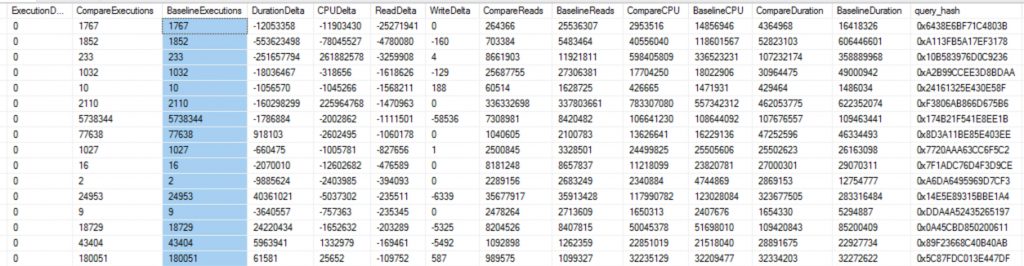
Query Store for Workload Replay gives you performance metrics to the query level.
Workload Replays compared down to the query execution level is priceless!

Lessons Learned Along the Way!

Initially, working with the query store I thought query_id was going to be my best friend. I quickly learned that my old friend query_hash is more helpful for multiple reasons. One, I can easily compare queries between different replays. That’s right now all workload replays get you the same query_id even when the workload is the exact same being replayed. Two, I can compare them with different databases as well. Finally, query_hash is very helpful with ad-hoc workloads as I can aggregate all the different query_ids that have the same query hash.

Need Performance Tuning Help?

Let us help you! Schedule a free 30-minute chat to see if we can point you the right direction. If you liked this blog post signup for our free newsletter! Also, take advantage of our free training videos!.
Import Databases to Azure SQL Database

I recently spoke at a conference and was asked what is the easiest way to import databases to Azure SQL Database. Therefore, I wanted to share how I do this with DBATools.io. You can use the same code to just export if you need a local copy of an Azure SQL database as well.

Import-Module dbatools -Force
<# Variables #>
$BackupPath = "C:\Demo\AzureSQL\Bacpac" #folder location for backups
$SourceInstance = "sql2019\sql2016"
$DBName = "AdventureWorksLT2012"
$AzureDestInstance = "procuresqlsc.database.windows.net"
$DBNameDest = $DBName

<# backpac options for import and export #>
$option = New-DbaDacOption -Type Bacpac -Action Export
$option.CommandTimeout = 0

$option2 = New-DbaDacOption -Type Bacpac -Action Publish
$option2.CommandTimeout = 0

<#  
The following assums Azure SQL Database exists and is empty 
Azure will create database by default if it doesn't exist 
#>
$bacpac = Export-DbaDacPackage -Type Bacpac -DacOption $option -Path `
$BackupPath -SqlInstance $SourceInstance -Database $DBName 
Publish-DbaDacPackage -Type Bacpac -SqlInstance `
$AzureDestInstance -Database $DBNameDest -Path $bacpac.path `
 -DacOption $option2 -SqlCredential username

What Is my Performance Tier?

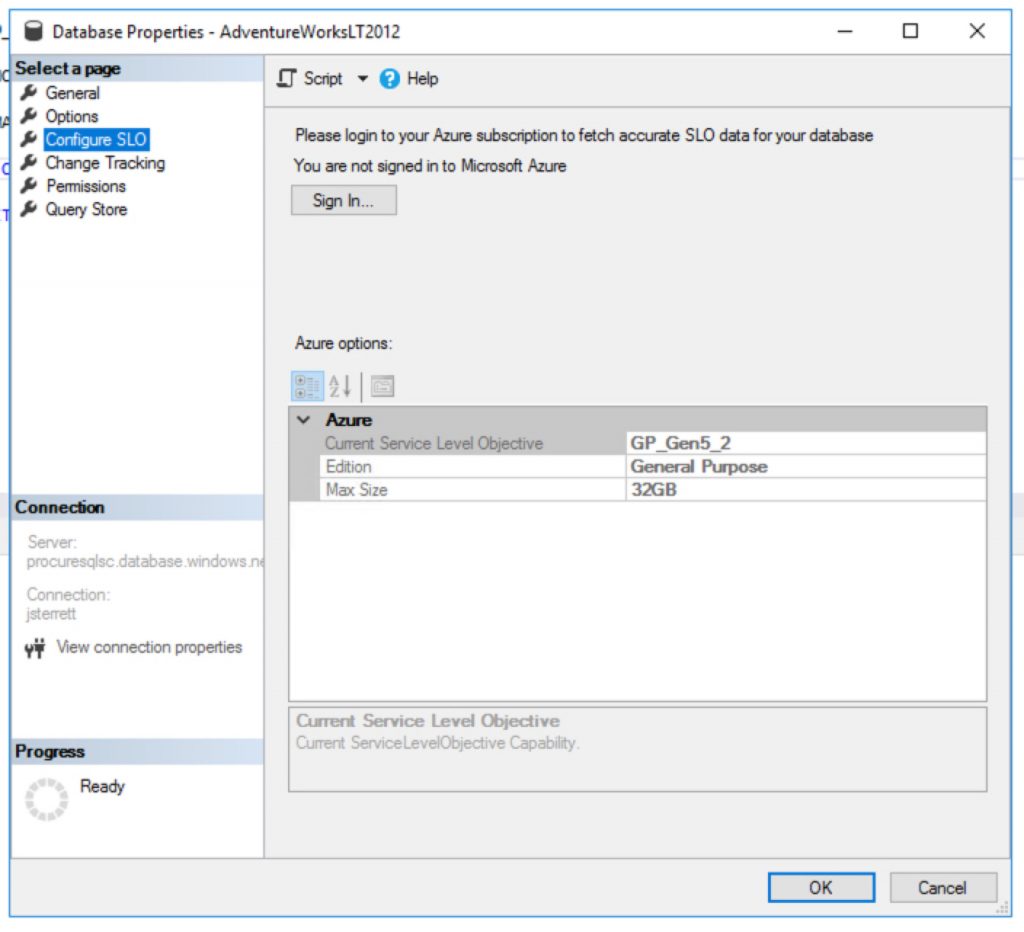
Great question, as of 3/3/2020 if the database in Azure SQL Database does not exist then it will be created. When its created the following database uses the default performance tier. This is General Purpose (Gen5) with 2 vCores.

Default performance tier for a new Azure SQL Database costs $371.87 per month.
The default cost of a new Azure SQL Database is 371.87 per month.

How to create cheaper databases

Great question, you can import databases to Azure SQL Database cheaper using PowerShell. It is as simple as using the Azure PowerShell Module. The following example below I use my existing Azure SQL Database server and I end up creating a new database with the “S0” tier.

<# 
Install Azure Powershell module requires local admin
Install-Module -Name Az -AllowClobber -Scope AllUsers
#>

Import-Module Az -Force
$RGName = "<Your Existing Resource Group>"
$ServerName = "<Your Azure SQL Database Server>"
$Tenant = "<Add Tenant ID>"
$Subscription = "<Add your Subscription ID>"

Connect-AzAccount -Tenant $Tenant  -SubscriptionId $Subscription
$server = Get-AzSqlServer -ResourceGroupName $RGName -ServerName  $ServerName

$db = New-AzSqlDatabase -ResourceGroupName $RGName `
-ServerName $server.ServerName -DatabaseName $DBName `
-RequestedServiceObjectiveName "S0"

Your Homework Assignment

You got all the nuts and bolts to generate a script that can migrate all your databases on an instance. Then you can import databases to Azure SQL Database in one loop.

Need Help Moving to Azure?

Let us help you! Schedule a free 30-minute chat to see if we can point you the right direction. Take advantage of our free resources too.

If you liked this blog post signup for our free newsletter!

Allow users to start/stop Azure VMs

Today I wanted to cover how you can grant the least privilege required to stop, start or restart an Azure VM. This is also a fun great example of how you can create custom Azure Security Roles too. That’s right, we are killing two birds with one stone today.

Why Should you create a custom Role?

Where possible I like to grant security towards resource groups. Therefore, let’s assume we got multiple VM’s built for the developer group to do some testing. You want to grant people access to start, restart or stop any VM in that group. We can then grant access to the resource group to our custom role. As VMs come in and out of the resource group they would inherit our custom group.

Now, you might be wondering why don’t I just give them the “Contributor” role or the “Virtual Machine Contributor” role and be on our way? Well, if you were to do this on a resource group you just gave access to create VM’s and a whole lot more.

Least privileged roles are your best friend. Today, you will see they are also not that hard to create either.

How do we create custom roles?

Great question, first you need to identify what tasks do we need the role to complete. In our case, you have to be able to see a VM in order to take any action against the VM. Then we want to start, stop (deallocate) and restart the VM. Digging through IAM. I found the following security options.

 "Microsoft.Compute/*/read",
 "Microsoft.Compute/virtualMachines/start/action",
 "Microsoft.Compute/virtualMachines/restart/action",
 "Microsoft.Compute/virtualMachines/deallocate/action"

Now, we can create our custom JSON text file that we will then import using Azure CLI. Below you will find a sample JSON file to build our custom security role. You will need to add your subscription id(s). You can also change your name and description you would see in the Azure Portal.

  "Name": "VM Operator",
      "IsCustom": true,
      "Description": "Can start, restart and stop (deallocate) virtual machines.",
      "Actions": [
        "Microsoft.Compute/*/read",
        "Microsoft.Compute/virtualMachines/start/action",
        "Microsoft.Compute/virtualMachines/restart/action",
        "Microsoft.Compute/virtualMachines/deallocate/action"
      ],
      "NotActions": [


      ],
      "AssignableScopes": [
        "/subscriptions/<Subscription ID Goes Here>"
      ]
    }

How to Import Custom Security

Now that we are ready to go with our custom security role in a JSON file. We can then utilize Azure CLI to log in to the tenant and import our security role. First, we will log in to Azure with CLI as shown below.

az login --username <myEmailAddress> -t <customerTenantId-or-Domain>

Now we will load our saved JSON file. After a few minutes, we should then see our new security role in the Azure portal.

az role definition create --role-definition IAMRole-VMOperator.json

Now you can grant access to your custom role just like you would with any other role in Azure.

Previous SQL Server Updates

Hello everyone, this is John your Austin SQL Server Consultant here and today I am going to answer a question that comes up often so I wanted to blog about it for everyone. The question of the day is where can I download the previous SQL Server Updates?

The History towards Updates

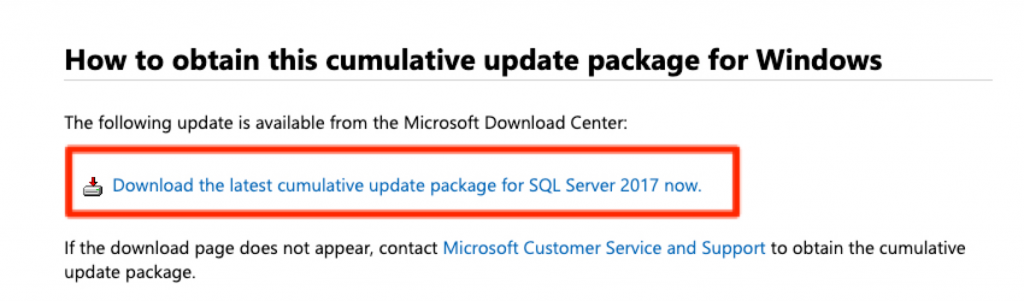
Back in the day when we were young but not a kid anymore there were service packs and cumulative updates. We could download these separately and all of the updates were easy to find. Now today, if you click on a KB article to download an update you get pointed to the latest update as shown below.

Current SQL Server KB articles point to only the latest update.

How far is My SQL Server on Updates?

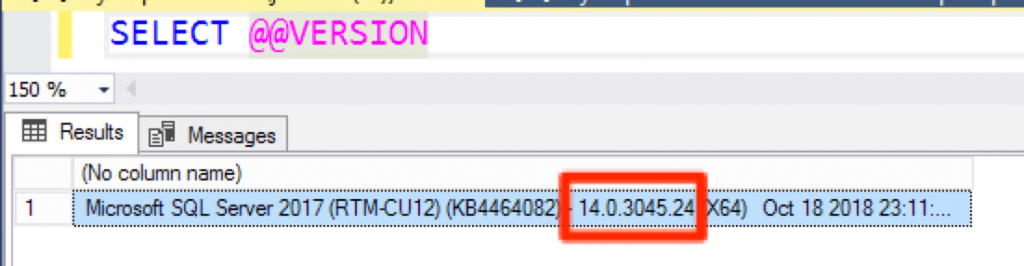
This is also another great question. My favorite place to find all the history of updates toward SQL Server is the SQL Server Build List Blog. You can cross-reference this towards your version by running the following query below.

You can use SELECT @@VERSION to get your current version number.

I fully get exactly why Microsoft is trying to point everyone to the latest update. Normally, it makes perfect sense but let’s take a look at today Jan 9th, 2020. I am planning to update SQL Server 2017 to CU17. Its been out for two months. Today CU18 is released and if I wasn’t careful I would have downloaded a different update than expected.

SQL Server Blog List is a great resource for finding a list of all SQL Server Updates

Getting a previous SQL Server Update

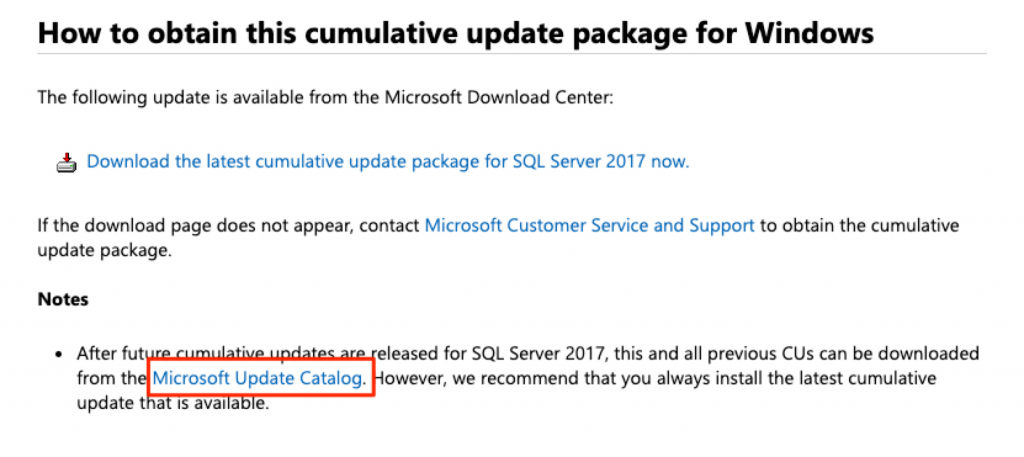
So, on to the solution. It’s actually an easy one but also one that is easy to overlook as well. Let’s go back to the new standard update page for SQL Server updates.

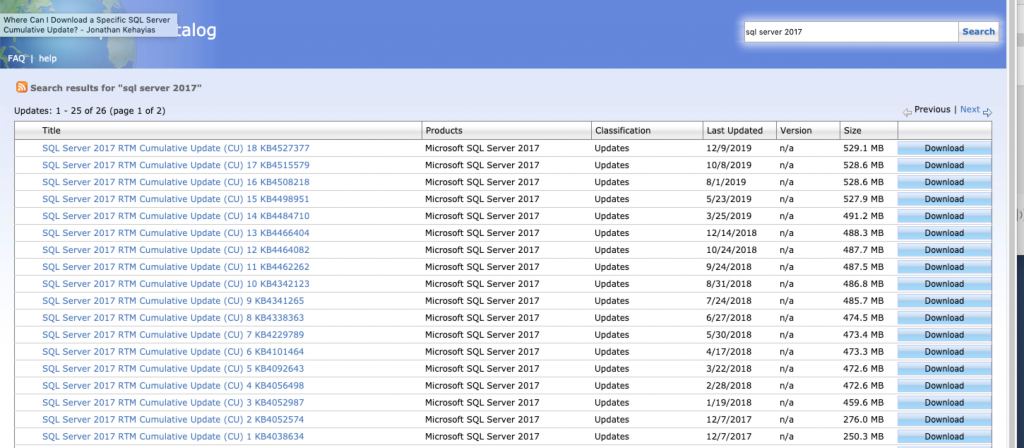
That is right, the Microsoft Update Catalog is your best friend to find all your updates for Microsoft products including SQL Server. You can search for the product you want. For example, in this case, I am looking for SQL Server 2017 and can see all the previous updates for SQL Server.

All SQL Server Updates Can be Found in the Microsoft Update Catalog.
All the SQL Server Updates can be found in the Microsoft Update Catalog

If you enjoyed this tip and found it helped make sure to join our newsletter so you can enjoy more free tips, tricks, and video demos.

Free SQL Server Training Videos

Hello everyone! This is your SQL Server Consultant in Austin, TX and due to some posts on twitter about SQL PASS recordings costing $999 I wanted to share some of my favorite places to find free SQL Server training videos. I hope this helps make your data fast, secure and highly available in 2020 and beyond!

Where Is the Good Stuff Give Me Some More

Speaking on Migrating to Azure SQL Database at Ignite 2017
Attending conferences is nice but free recorded sessions are priceless!

Those who know me know I love music. I especially love the underground non-mainstream content. Therefore, my first recommendation is UserGroup.TV. As of December 27th, there are 127 videos tagged as SQL Saturday alone. Shawn goes around to almost every Tech conference he can find and brings his rig and records sessions for the community.

Are you in love with the new pop singles? Wish you could hear them before they hit the radio? If you like your tech like your music than Microsoft Ignite is for you. Every year Microsoft puts on a conference called, Ignite. This conference is usually where Microsoft will break its cutting edge tech. My favorite thing about the conference is that the content is available online for free. Midway through the page, you can search through the massive collection of free recorded sessions.

Next up, is the consistent greatest hits. Almost every session is a banger! This reminds me of my favorite Microsoft Data Platform conference. This is SQLBits and yes, their video content is also available for FREE.

Finally, Here is a collection of some great videos on performance tuning. Make SQL Server Go Faster, SQL Server Performance Improvements with SQL 2019. Another one is 7 Reasons your SQL Server Code is Slow! You can also find more great videos at Procure SQL Youtube Channel.

5 Game Changers with SQL Server 2019

Microsoft made SQL Server 2019 Generally Available this week we want to share some videos and code examples of our favorite new features. Most of these will make your code go faster without any code changes!

We have been testing SQL Server 2019 for months and hope you enjoy these features as much as we do!

Join us for FryeDay!

Once again it is PASS Summit week in Seattle. This is the biggest event in the world for SQL Server and Microsoft Data Professionals to gather to connect,

Frye First Time Speaker

Frye First Time Speaker

share and learn.

I will never forget being anxious and scared the first time I gave a presentation at PASS in front of hundreds of people.  Therefore, one of my favorite traditions during PASS Summit is to find a first-time speaker at PASS and try to make them at ease by having their friends and peers wear something special during their first presentation.

This year, I couldn’t think of a better person than Jeremy Frye. I have known Jeremy for years. I have been blessed to work with him at RDX. While everyone in the community knows him as the speaker who wears a Pittsburgh Pirates hat at SQL Saturday’s he is an inspiration to me. He is proof that good guys can be successful in this community. He is one of the most humble, kind and helpful people I know.  I have been

Dress like Frye Day!

Dress like Frye Day!

blessed to see him share his knowledge for years and am excited for everyone to do so this week as well. Therefore, to help Jeremy for his first session we will be giving out Pittsburgh Pirates hats to support Jeremy. If you can make Jeremy’s session on “Speed Up Your SSAS Data Refresh with Dynamic Partition Processing” at 11:00 am in room 604 on Friday (I like to call it FryeDay) come on by the RDX booth and ask for a Pirates hat. When you see Jeremy around this week tell him you got this and you cannot wait for his session!


Best Hidden Feature in SQL Server 2019

With Microsoft’s Ignite conference this week a lot of new features are being advertised all over the internet.  Most likely if you are following along you have heard of Big Data Clusters, Spark, Performance Tuning, and security features.  I am really excited about this new feature and hope you are as excited about it too.


SQL Server Automatic Tuning in the Real-World

In SQL Server 2016 we saw Query Store.  Query Store was a game changer to help database administrators identify troublesome queries. Query Store helps DBAs make those queries run faster.  Microsoft’s marketing team even jumped on to help coin the phrase, “SQL Server It Just Runs Faster.” With SQL Server 2017, this started to get even better with automatic tuning. Don’t worry database administrators.  Automatic Tuning will just enhance your career and not replace it.

SQL Server 2017 Automatic Tuning looks for queries where execution plans change and performance regresses. This feature depends on Query Store being enabled. Note, even if you don’t turn on Automatic Tuning you still get the benefits of having access to the data. That is right. Automatic Tuning would tell you what it would do if it was enabled.  Think of this as free performance tuning training.  Go look at the DMVs and try to understand why the optimizer would want to lock in an execution plan. We will actually go through a real-world example:

Automatic Tuning with SQL Server 2017

First, let’s take a quick look at the output of the data. You can find the query and results we will focus on below.

SELECT reason, score,
      script = JSON_VALUE(details, '$.implementationDetails.script'),
      planForceDetails.*,
      estimated_gain = (regressedPlanExecutionCount+recommendedPlanExecutionCount)
                  *(regressedPlanCpuTimeAverage-recommendedPlanCpuTimeAverage)/1000000,
      error_prone = IIF(regressedPlanErrorCount>recommendedPlanErrorCount, 'YES','NO')
--INTO DBA.Compare.Tunning_Recommendations
FROM sys.dm_db_tuning_recommendations
  CROSS APPLY OPENJSON (Details, '$.planForceDetails')
    WITH (  [query_id] int '$.queryId',
            [current plan_id] int '$.regressedPlanId',
            [recommended plan_id] int '$.recommendedPlanId',

            regressedPlanErrorCount int,
            recommendedPlanErrorCount int,

            regressedPlanExecutionCount int,
            regressedPlanCpuTimeAverage float,
            recommendedPlanExecutionCount int,
            recommendedPlanCpuTimeAverage float

          ) as planForceDetails;

I will break the results down into two photos to make them fit well in this blog post.

Free Tuning Recommendations with Automatic Tuning in SQL Server 2017

Free Tuning Recommendations with SQL Server 2017 (1/2)

Automatic Tuning Results in SQL Server 2017

Free Tuning Recommendations with SQL Server 2017 (2/2)

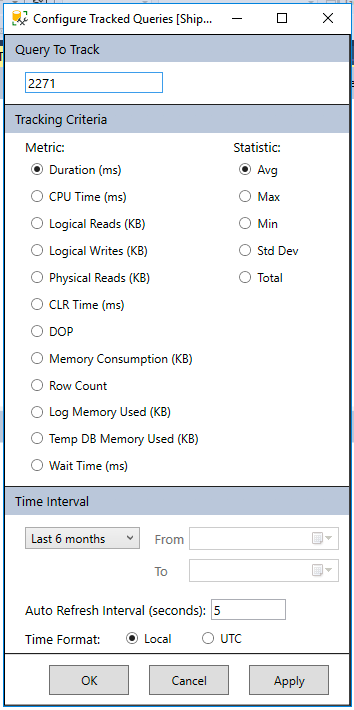
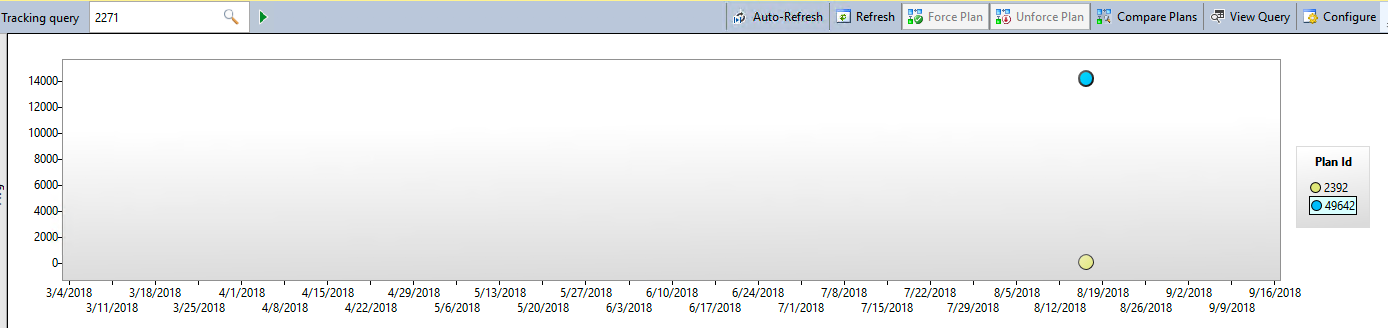
Now we know in the query store query_id 2271 has CPU time changing from 7,235ms to 26ms. That’s a big difference. Let’s take that query and look at its findings by using the tracked query report inside SSMS.

Query Store find history of a query

Find my Changed Query. Did the plans change?

Here we can see the major difference between the two execution plans. One is averaging over 14 seconds in duration while the other is under a second.

Reviewing Query performance in Query Store

Query Store showing the performance difference between the two plans

Now we can select both plans on the screen above and look at the execution plans side by side inside of SSMS. When doing so, we see the common example of the optimizer determining if it is better to scan an index vs a seek with a key lookup.

Side by Side Execution Plan Review in SSMS.

Using SSMS to compare auto tuning recommended query.

To complete the example I want to point out that automatic tuning would lock in the index seek plan (Plan 2392). In SQL Server 2016 you can do this as well manually inside Query Store. With SQL Server 2017 it can be done automatically for you with Automatic Tuning. If you have ever woken up to slow performance due to an execution plan changing and performance going through the drain this might be a life saver.

If you would like to learn about performance tuning changes in SQL Server 2016 and 2017 sign up for our newsletter or catch me talking about these features at SQL Saturday Denver and SQL Saturday Pittsburgh this month.  If you need any help with tuning or upgrading contact us. We would love to chat with you!


Why We’re Organizing SQL Saturday in Wheeling, WV on April 28th

Some of my friends know I am a huge fan of the song “Havana” by Camila Cabello. They also know I like to remix songs and if I was to remix the song I would just change the word “Havana” to “Wheeling, WV” because half of my heart is in the Ohio Valley.

Why?

Wheeling is where I grew up as an adult and to this day it is one of the special happy places I like to visit. On April 28th Wheeling will host their the third SQL Saturday. Anyone can attend for FREE! l look forward to sharing my favorite city with the SQL Community and my SQL Family.

Free SQL Server Training in Wheeling, WV

Free SQL Server Training on April 29th in Wheeling, WV

Procure SQL will be teaming up with the Wheeling Chapter of AITP (only IT group in Ohio Valley) to bring some expert SQL Server training from MVPs, MCTs, and community experts to the Ohio Valley. I hope Data Platform professionals in nearby cities like Columbus, Pittsburgh, Harrisburg, Cleveland and Washington DC join is un the fun as well.

Things to Do?

Check out this quick five-minute video to find out some of the great things you can do in Wheeling, WV and why I fell in love with Wheeling!

Food

Colemans Fish Market – It is #1 on TripAdvisor for a reason. Best-fried fish sandwiches.
Ye Old Alpha – The Bridgeport brownie is legendary good.
DeCarlos Pizza – Wheeling’s special version of Pizza. If you get it make sure to eat it quick. Locals typically will eat it on the hood of their cars.
Undos – My personal favorite Italian food restaurant.

Places to See:

Good Mansion Wine – If you like wine, the selection here is fantastic. They will also have an open wine tasting event April 27th at 6 pm. If you are looking for something fun to do the night before the event I would recommend this.
Suspension BridgeIf you like history. You have to check out one of the oldest suspension bridges in the USA. You can still walk and drive across it.
Wheeling Artisan CenterGreat small tour of the history of Wheeling, WV.
Center Market
– Historic part of town with a lot of shops and places to eat. Its an easy walk from the SQL Saturday venue.
Oglebay Resort – Depending on the weather the driving range or ski lift will be open. Seriously, a great five-star resort with epic holiday events including Christmas lights, ogalbayfest, and 4th of July.
Wheeling Island Casino – If you like to play cards and win money its a great location. Used to do it a lot on lunch breaks.